Drizzle Studio is a powerful database management interface that makes working with your database intuitive and efficient. Learn how to use it for development, debugging, and data management.
Getting Started with Drizzle Studio
Launch Studio
bash
# Start Drizzle Studio
pnpm db:studio

# Output:
# Drizzle Studio is running on http://localhost:4983
1
Open in Browser
Navigate to http://localhost:4983 in your web browser.
2
Connect to Database
Studio automatically connects using your DATABASE_URL from environment variables.
3
Explore Interface
The interface shows all your tables, relationships, and data in a clean UI.
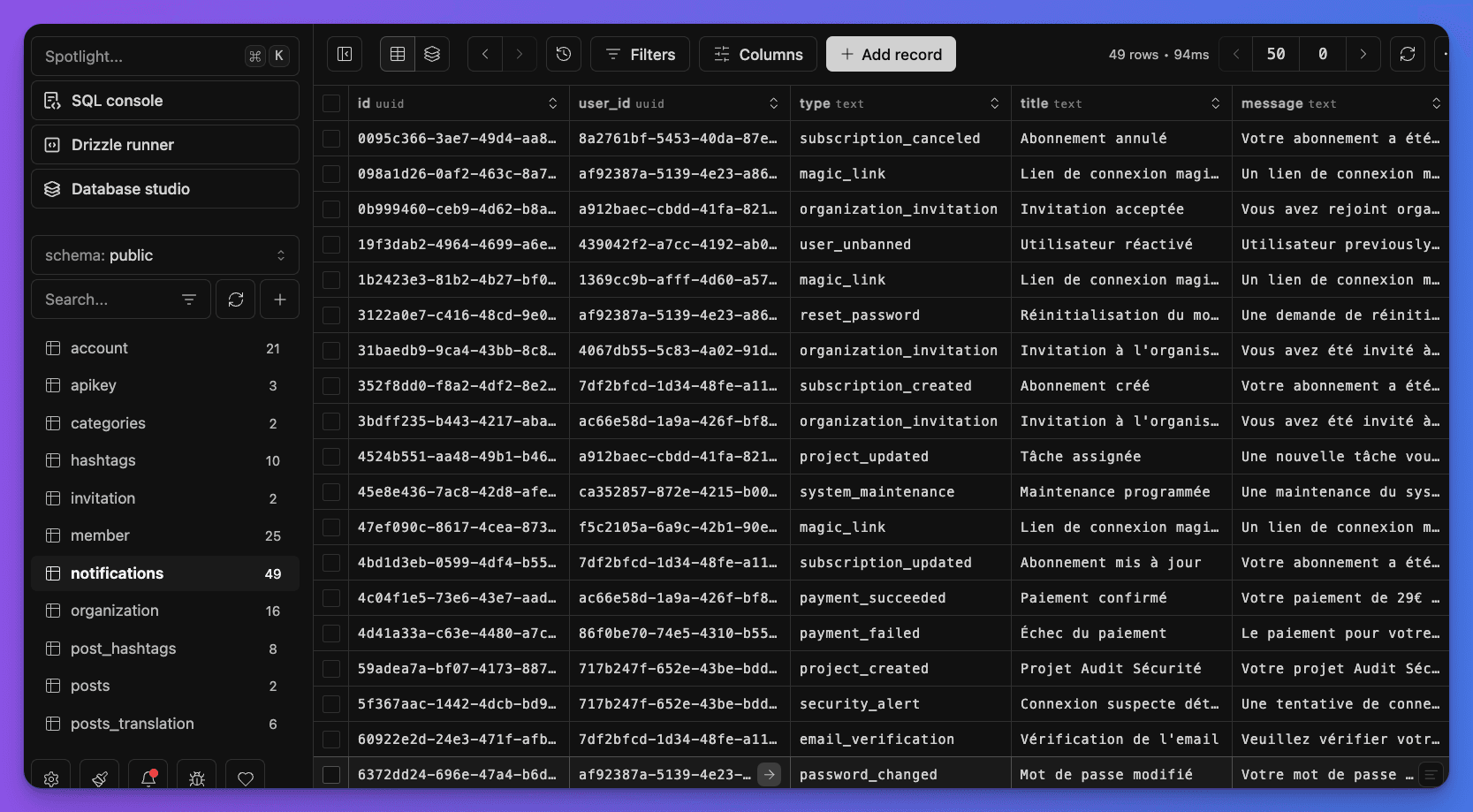
Studio Interface Overview
Main sections:
- Left Sidebar: Table list with search and filtering
- Main Panel: Data grid with editing capabilities
- Query Tab: SQL query interface
- Schema Tab: Visual schema explorer
- Relationships: Interactive relationship diagram
Drizzle Studio Interface:
Browsing and Filtering Data
Table Navigation
📊 Tables (in sidebar)
├── 👥 users (45 rows)
├── 🏢 organizations (12 rows)
├── 👤 members (67 rows)
├── 📝 projects (23 rows)
├── ✅ tasks (156 rows)
└── 📧 notifications (234 rows)
Click any table to view its data in the main panel.
Data Grid Features
Column operations:
- Sort: Click column headers to sort ascending/descending
- Resize: Drag column borders to adjust width
- Hide/Show: Right-click headers to hide/show columns
- Search: Use the search bar to find specific values
Row operations:
- Select: Click rows to select (supports multi-select with Ctrl/Cmd)
- Edit: Double-click cells to edit values inline
- Insert: Use the "+" button to add new rows
- Delete: Select rows and use Delete key
Editing Data
Inline Editing
1
Edit Cell
Double-click any cell to edit its value:
Before: John Doe
After:  John Smith ✏️
2
Validate Changes
Studio validates data types and constraints:
✅ Valid: "user@example.com" (email format)
❌ Invalid: "not-an-email" (constraint violation)
3
Save Changes
Changes are saved automatically or use Ctrl+S (Cmd+S on Mac).
Adding New Records
1. Click the "Add Row" button (+)
2. Fill in the required fields
3. Studio auto-generates UUIDs for ID fields
4. Foreign key fields show dropdown with valid options
5. Save with Enter or click outside the row
Example - Creating a new user:
id: [auto-generated UUID]
name: "Jane Developer"
email: "jane@company.com"
role: "user" [dropdown: user, admin, moderator]
created_at: [auto-set to now()]
Bulk Operations
Select multiple rows:
- Ctrl+Click (Cmd+Click) for individual selection
- Shift+Click for range selection
- Ctrl+A (Cmd+A) to select all visible rows
Bulk actions:
- Delete: Select rows → Delete key → Confirm
- Export: Select rows → Export button → Choose format (JSON, CSV)
- Duplicate: Select row → Duplicate button → Modify values
Relationship Visualization
Exploring Relations
Click relationship arrows to navigate:
users table
├── → members (user_id)
│   └── → organizations (organization_id)
│       └── → projects (organization_id)
│           └── → tasks (project_id)
├── → user_settings (user_id)
└── → notifications (user_id)
Relationship Panel
The relationship panel shows:
- One-to-Many: User → Multiple Organizations
- Many-to-Many: Posts ↔ Hashtags (through junction table)
- One-to-One: User → User Settings
Interactive features:
- Click related record counts to filter
- Hover relationships to highlight connections
- Right-click to create new related records
SQL Query Interface
Custom Queries
sql
-- Find all admin users
SELECT name, email, created_at
FROM users
WHERE role = 'admin'
ORDER BY created_at DESC;

-- Count users by role
SELECT role, COUNT(*) as count
FROM users
GROUP BY role;Query Features
Syntax highlighting: Full SQL syntax highlighting and autocomplete Execution: Run queries with Ctrl+Enter (Cmd+Enter) Results: View results in formatted tables Export: Export query results to JSON, CSV, or SQL History: Access previous queries from history panel
Studio Development Workflow
Database Seeding
View seed data results:
bash
# Run seed command
pnpm db:seed

# Then open Studio to verify:
pnpm db:studio
Inspect seeded data:
- Users: Check demo accounts (admin@example.com, user@example.com)
- Organizations: Verify sample organizations with members
- Projects: Review sample projects and tasks
- Content: Check blog posts with translations
Schema Exploration
Use Studio to understand your schema:
1
Visual Schema
Use the Schema tab to see the complete database structure with relationships.
2
Table Details
Click any table to see:
- Column definitions and types
- Indexes and constraints
- Foreign key relationships
- Sample data preview
3
Relationship Graph
Interactive diagram showing how tables connect to each other.
Testing Data Changes
Before code changes:
- Note current data state in Studio
- Make your code changes
- Test the application
- Verify data changes in Studio
- Reset database if needed:
pnpm db:reset-seed
Debugging with Studio
Finding Data Issues
Common debugging scenarios:
sql
-- Find tasks without projects
SELECT t.*
FROM tasks t
LEFT JOIN projects p ON t.project_id = p.id
WHERE p.id IS NULL;

-- Find members without users
SELECT m.*
FROM members m
LEFT JOIN users u ON m.user_id = u.id
WHERE u.id IS NULL;Data Verification
After running migrations or updates:
1
Check Row Counts
sql
SELECT
  'users' as table_name, COUNT(*) as count FROM users
UNION ALL
SELECT
  'organizations', COUNT(*) FROM organizations
UNION ALL
SELECT
  'projects', COUNT(*) FROM projects;
2
Verify Data Integrity
sql
-- Check for recent changes
SELECT table_name, COUNT(*) as count
FROM (
  SELECT 'users' as table_name, created_at FROM users
  WHERE created_at > NOW() - INTERVAL '1 hour'
  UNION ALL
  SELECT 'projects', created_at FROM projects
  WHERE created_at > NOW() - INTERVAL '1 hour'
) recent_data
GROUP BY table_name;
3
Sample Data Review
Use Studio's data grid to manually inspect a sample of records for correctness.
Advanced Features
Data Export and Import
Export options:
- JSON: Complete data structure with nested relationships
- CSV: Flat table format for spreadsheet applications
- SQL: INSERT statements for data migration
bash
# Export specific tables
# Select rows in Studio → Export button → Choose format

# Example exports:
users_export.json        # User data with relationships
projects_export.csv      # Project data for analysis
tasks_backup.sql         # SQL INSERT statements
Query Templates
Save frequently used queries:
sql
-- Template: Active users by role
SELECT role, COUNT(*) as count
FROM users
WHERE active = true
  AND created_at > '{{start_date}}'
GROUP BY role
ORDER BY count DESC;

-- Template: Project completion report
SELECT
  o.name as organization,
  p.name as project,
  COUNT(t.id) as total_tasks,
  COUNT(CASE WHEN t.status = 'completed' THEN 1 END) as completed
FROM organizations o
JOIN projects p ON o.id = p.organization_id
LEFT JOIN tasks t ON p.id = t.project_id
WHERE p.created_at > '{{project_start_date}}'
GROUP BY o.id, o.name, p.id, p.name;
Performance Monitoring
Use Studio to identify slow queries:
sql
-- Check table sizes
SELECT
  schemaname,
  tablename,
  attname,
  n_distinct,
  correlation
FROM pg_stats
WHERE schemaname = 'public'
ORDER BY n_distinct DESC;

-- Analyze query performance
EXPLAIN ANALYZE
SELECT u.*, COUNT(p.id) as project_count
FROM users u
LEFT JOIN members m ON u.id = m.user_id
LEFT JOIN organizations o ON m.organization_id = o.id
LEFT JOIN projects p ON o.id = p.organization_id
GROUP BY u.id;
Studio Configuration
Environment Variables
Studio uses the same database configuration as your application:
bash
# .env.local
DATABASE_URL="postgresql://user:pass@host:port/db"

# Optional: Custom Studio port
DRIZZLE_STUDIO_PORT=4983
Studio Options
bash
# Start on different port
pnpm db:studio --port 5000

# Start in verbose mode
pnpm db:studio --verbose

# Start with specific config
pnpm db:studio --config ./custom-drizzle.config.ts
Best Practices
Studio Best Practices
1
Start Studio Early
Launch Studio at the beginning of development sessions to monitor database changes.
2
Use for Verification
After making code changes, verify the results in Studio before committing.
3
Clean Up Test Data
Regularly reset your development database to ensure clean test conditions.
Data Safety
Production considerations:
Never use Studio with production databases. Studio allows direct data editing, which can be dangerous in production environments.
Safe practices:
- Only connect to development/staging databases
- Use read-only database users for data exploration
- Always backup before making bulk changes
- Test data migrations on copies of production data
Performance Tips
For large databases:
- Use filters to limit data displayed
- Avoid loading tables with millions of rows
- Use custom queries instead of browsing large tables
- Consider pagination for data review
Drizzle Studio is an essential tool for database development. Use it to understand your schema, verify data changes, debug issues, and prototype queries efficiently.
Next Steps
- Best Practices - Learn performance optimization and security guidelines
- Repository Pattern - Return to repository patterns with your new Studio knowledge