Email/password authentication is always available in the boilerplate and works out-of-the-box with just basic configuration.
Quick Start
Minimum setup: Only BETTER_AUTH_SECRET and BETTER_AUTH_URL required for basic login/register to work.
bash
# Essential configuration
BETTER_AUTH_SECRET="your-super-secret-key"
BETTER_AUTH_URL="http://localhost:3000"
That's it! Users can now register and login at /[locale]/login and /[locale]/register.
Environment Variables
Core Authentication
bash
# Required - Better Auth core
BETTER_AUTH_SECRET="generate-with-openssl-rand-base64-32"
BETTER_AUTH_URL="http://localhost:3000"

# Optional - Email service (needed for verification & password reset)
RESEND_API_KEY="re_your_resend_api_key"
EMAIL_FROM="noreply@yourdomain.com"
Feature Controls
bash
# Require email verification before login
NEXT_PUBLIC_BETTER_AUTH_REQUIRE_EMAIL_VERIFICATION=true
Impact:
true= Users must click email link before they can loginfalse= Users can login immediately after registration (default)
User Pages & Components
Authentication Pages
Location: All authentication pages are in src/app/[locale]/(auth)/
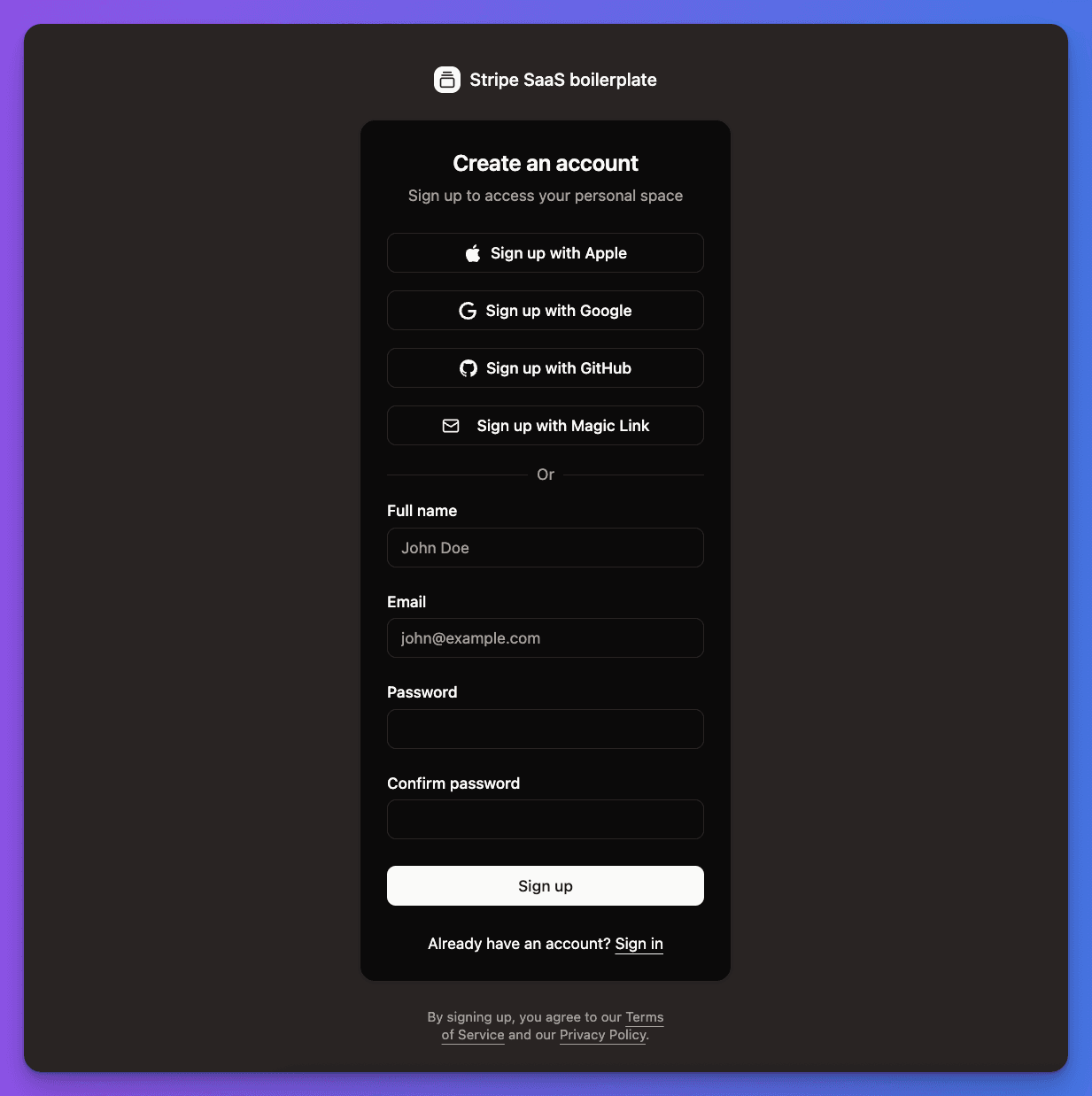
Registration: /[locale]/register
- Email validation and password strength checking
- Password confirmation matching
- Social auth options (if configured)
- Automatic redirect after success
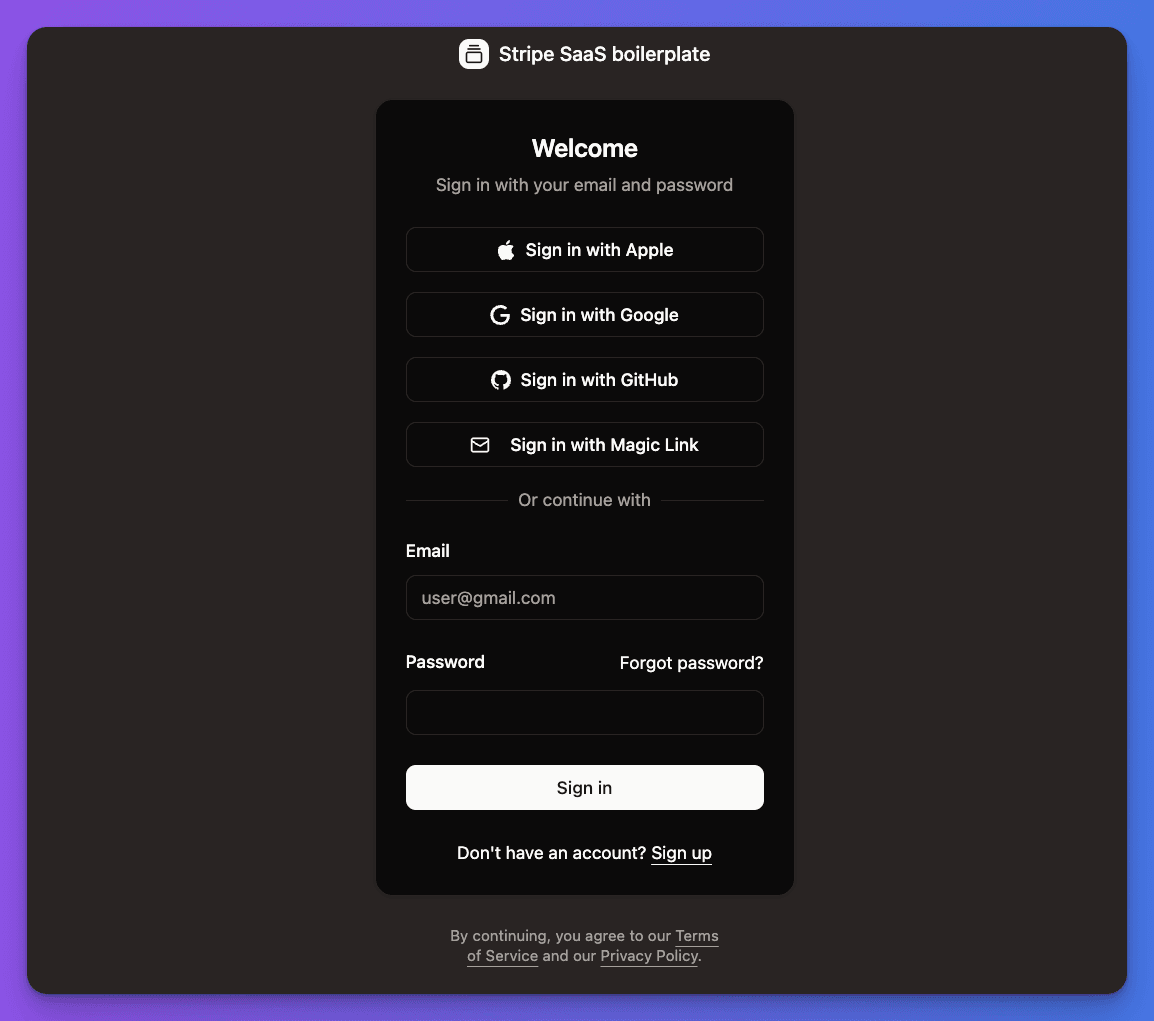
Login: /[locale]/login
- Email/password form
- "Forgot password?" link
- Social auth options (if configured)
Password Reset: /[locale]/reset-password
- Email input to request reset
- New password form (when using reset link)
Email Verification: /[locale]/verify-request
- Shows verification status
- "Resend email" button
- Success/error messages
Account Management Pages
Location: User account pages are in src/app/[locale]/(app)/account/
Account Settings: /[locale]/account/settings
- Profile information (name, avatar)
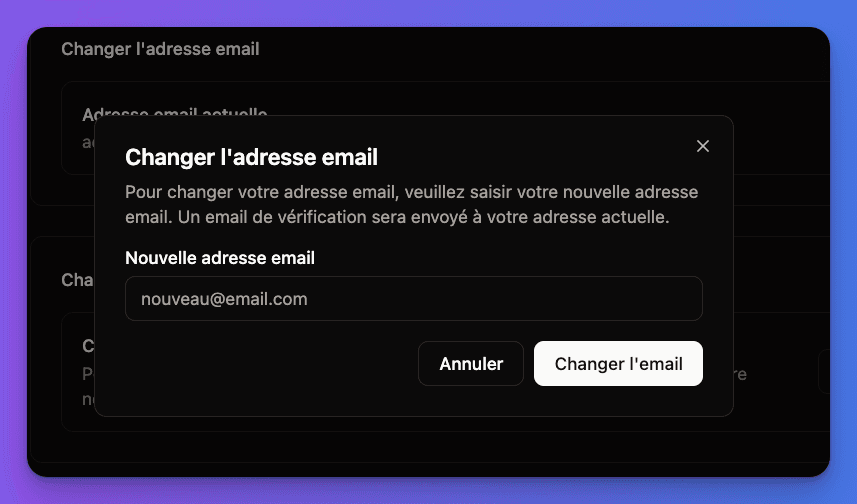
- Email change (if
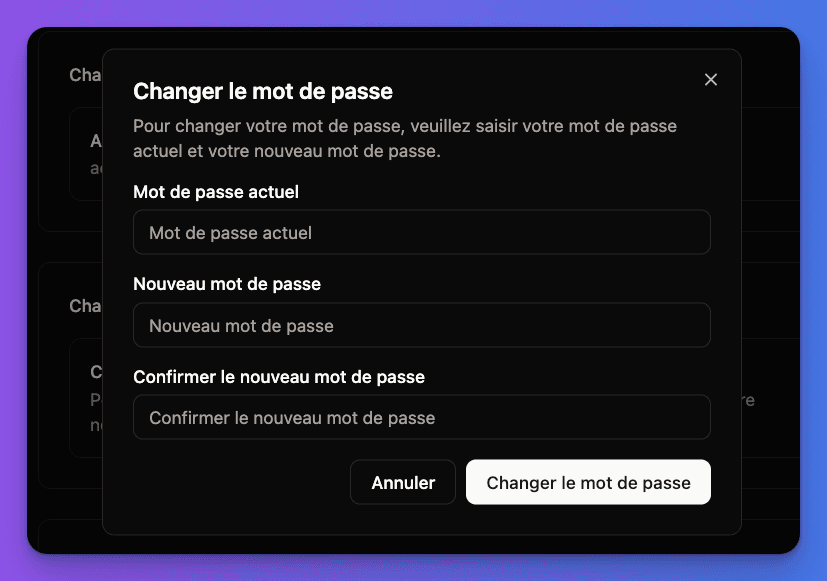
CHANGE_EMAIL=true) - Password change (if
CHANGE_PASSWORD=true)
Email Change Interface:
Password Change Interface:
Notifications: /[locale]/account/notifications
- Email preferences
- Security notifications
Registration & Login Flows
The login form shows all available authentication methods, including the email/password credentials at the bottom of the form.
With Email Verification (Recommended)
1
User registers
- Visits
/[locale]/register - Fills email/password form
- Account created but
emailVerified: null
2
Verification email sent
- User redirected to
/[locale]/verify-request - Email with verification link sent automatically
- Cannot login until verified
3
Email verified
- User clicks link in email
- Account marked as verified
- Can now login normally
Without Email Verification (Simplified)
bash
NEXT_PUBLIC_BETTER_AUTH_REQUIRE_EMAIL_VERIFICATION=false- User registers → immediately logged in
- Direct redirect to account dashboard
- No email verification required
Password Features
Built-in Password Requirements
The boilerplate enforces these rules automatically:
- Minimum 8 characters
- Must contain letters and numbers
- Cannot be common passwords
- Real-time validation feedback
Password Reset Flow
1
Request reset
- User clicks "Forgot password?" on login page
- Enters email address
- Rate limited: 1 request per 5 minutes
2
Reset email
- Secure reset link sent (expires in 1 hour)
- One-time use token
- Clear instructions included
3
Set new password
- User clicks link → new password form
- Same validation rules apply
- All sessions invalidated for security
Change Password (Logged-in)
Where: /[locale]/account/settings
Requirements:
- Current password verification
- New password meets strength requirements
- Cannot be same as current password
Password change requires NEXT_PUBLIC_BETTER_AUTH_CHANGE_PASSWORD=true
Email Templates
The boilerplate includes pre-built templates:
Email Verification
- Clean design with clear call-to-action
- Expires in 1 hour
- Customizable via notification service
Password Reset
- Security-focused messaging
- One-time use warning
- Expiration time clearly stated
Email Change
- Both old and new email notified
- Confirmation required
- Rollback available if not verified
Security Features
Built-in Protections
Rate Limiting
- Prevents brute force attacks
- Failed login attempt tracking
- Cooldown periods for repeated failures
Session Security
- Secure HTTP-only cookies
- CSRF protection on all forms
- XSS prevention built-in
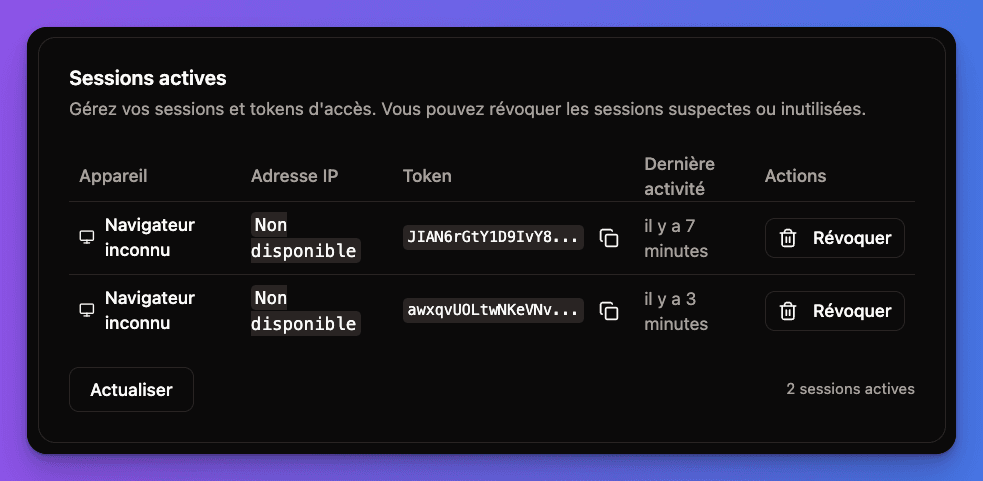
Active Sessions Management:
Password Security
- bcrypt hashing (industry standard)
- Secure token generation
- Session invalidation on password change
Common Issues & Solutions
Users can't login after registration?
Check if email verification is enabled but emails aren't being sent:
- Verify
RESEND_API_KEYis set - Check
EMAIL_FROMdomain is verified in Resend - Look in spam/junk folders
Password reset emails not arriving?
- Ensure
RESEND_API_KEYis configured - Check if
BETTER_AUTH_URLmatches your domain - Verify reset link hasn't expired (1 hour limit)
Rate limiting issues?
- Clear browser cookies/data
- Wait for cooldown period
- Check if IP is being shared (development environments)
Testing Checklist
1
Registration
- Go to
/[locale]/register - Test with valid email you can access
- Verify password strength validation
- Complete registration flow
2
Email Verification
- Check for verification email (if enabled)
- Click verification link
- Confirm account is activated
- Test login with new credentials
3
Password Features
- Test "Forgot password?" flow
- Change password in account settings
- Test login with new password
- Verify old sessions are handled correctly
All working? Users can now register, verify emails, login, and manage their passwords using the built-in pages and forms.