Two-Factor Authentication adds an extra security layer. Users need both their password AND a code from their phone or email to login.
Perfect for: High-security applications, protecting sensitive data, and meeting compliance requirements.
How to Activate
1
Enable 2FA in environment
bash
# Enable 2FA feature
NEXT_PUBLIC_BETTER_AUTH_2FA_ENABLE=true

# Optional: Skip email verification when enabling 2FA
NEXT_PUBLIC_BETTER_AUTH_2FA_SKIP_VERIFICATION_ON_ENABLE=true

# Required for email codes
RESEND_API_KEY="re_your_resend_api_key"
EMAIL_FROM="noreply@yourdomain.com"
2
That's it!
2FA options automatically appear in user account settings at /[locale]/account/settings.
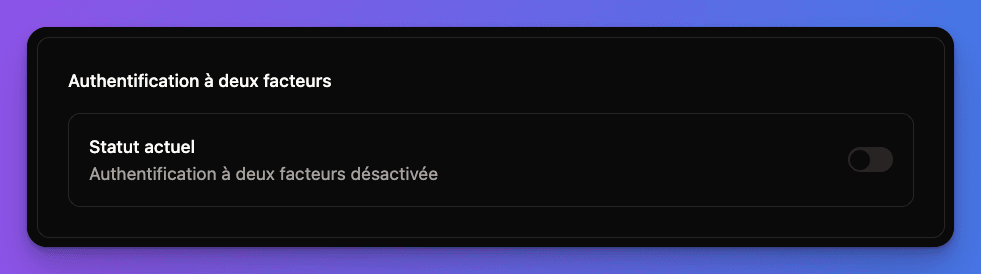
Types of 2FA Available
Authenticator Apps:
- Google Authenticator
- Microsoft Authenticator
- Authy
- 1Password
How it works:
- User scans QR code with app
- App generates 6-digit codes every 30 seconds
- User enters current code to login
How Users Set Up 2FA
Enabling TOTP (Authenticator App)
1
Go to account settings
User visits /[locale]/account/settings and finds the "Two-Factor Authentication" section.
2
Choose TOTP setup
Click "Enable TOTP" button to start the setup process.
3
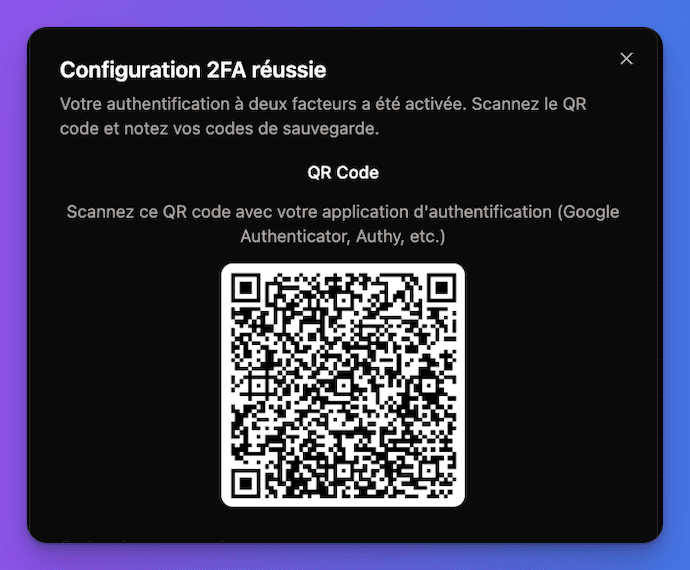
Scan QR code
- QR code is displayed on screen
- User scans with authenticator app
- App adds the account automatically
4
Verify with first code
User enters the 6-digit code from their app to confirm setup.
5
Save backup codes
System generates recovery codes that user must save safely.
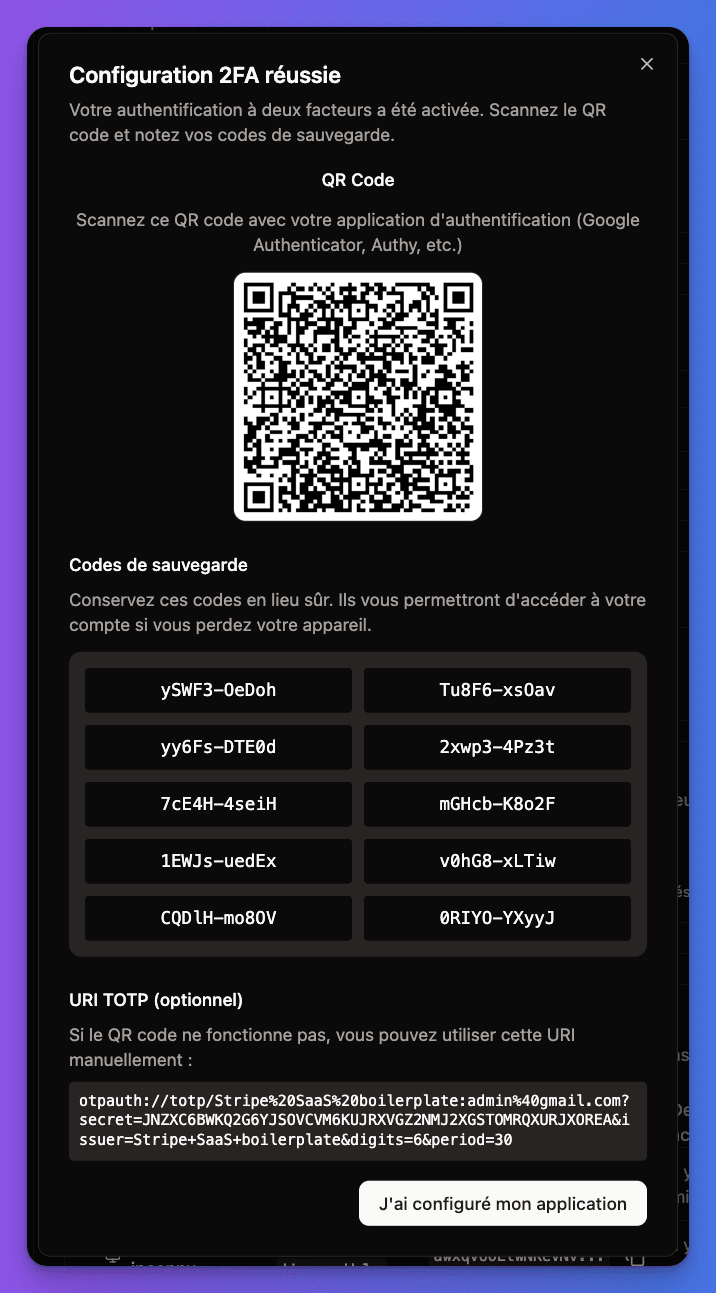
Backup Recovery Codes
Important: Recovery codes are generated when enabling 2FA. Users must save them securely - they're the only way to recover access if the authenticator app is lost.
Recovery codes features:
- 10 single-use codes generated
- Can be used instead of TOTP code
- User can regenerate new codes anytime
- Each code works only once
Login Process with 2FA
Standard Login Flow
1
Enter email and password
User starts with normal login at /[locale]/login.
2
Redirect to 2FA verification
After successful password, user is redirected to /[locale]/verify-request/totp.
3
Enter 2FA code
User enters 6-digit code from their authenticator app or email.
4
Complete login
After valid code, user is logged in and redirected to dashboard.
Recovery Process
If user loses access to their authenticator app:
1
Use recovery code
On the 2FA verification page, click "Use recovery code instead".
2
Enter recovery code
User enters one of their saved backup codes.
3
Access granted
User is logged in and should immediately set up 2FA again.
2FA Management
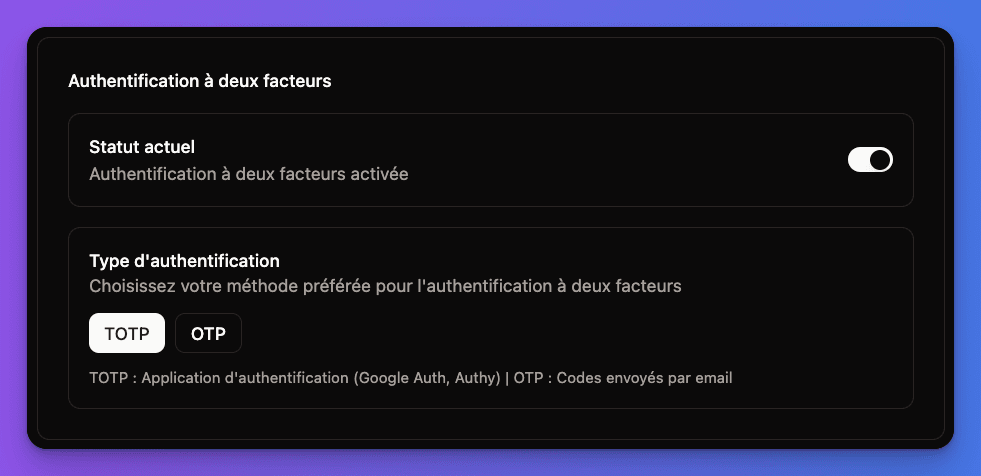
User Settings Page
Location: /[locale]/account/settings
Available options:
- Enable TOTP - Set up authenticator app
- Enable Email OTP - Set up email codes
- View Recovery Codes - Show/regenerate backup codes
- Disable 2FA - Turn off two-factor authentication
2FA Management Interface:
Verification Pages
The boilerplate includes dedicated verification pages:
/[locale]/verify-request/totp- Enter authenticator code/[locale]/verify-request/otp- Enter email code/[locale]/verify-request/recovery- Enter recovery code
Better Auth Configuration
The 2FA feature uses Better Auth's twoFactor plugin:
typescript
// In src/lib/better-auth/auth.ts
twoFactor({
  issuer: APP_ISSUER,
  skipVerificationOnEnable: AuthAppConfig.skipVerificationOnEnable,
  totpOptions: {},
  otpOptions: {
    period: 300, // 5 minutes expiration
    sendOTP: async ({user, otp}) => {
      const otpLink = `${env.NEXT_PUBLIC_APP_URL}/verify-request/otp?code=${otp}`
      await createTypedNotificationService({
        userId: user.id,
        type: NotificationTypeConst.otp_code,
        metadata: { otp, otpLink }
      })
    }
  }
})
Security Best Practices
Built-in security features:
- TOTP codes change every 30 seconds
- Email codes expire in 5 minutes
- Recovery codes are single-use only
- Rate limiting prevents brute force attacks
User recommendations:
- Use authenticator apps over email when possible
- Save recovery codes in a secure location
- Don't screenshot QR codes
- Regenerate recovery codes if compromised
Common Issues & Solutions
"Invalid code" errors?
- Check device time is synchronized
- Try the next code (wait 30 seconds)
- Use recovery code if TOTP keeps failing
- Re-scan QR code in authenticator app
Lost authenticator app?
- Use saved recovery codes to login
- Disable and re-enable 2FA after login
- Generate new recovery codes
- Set up authenticator app again
Email codes not arriving?
- Check
RESEND_API_KEYis configured - Verify email service is working
- Look in spam/junk folders
- Try requesting new code
Testing Checklist
1
Test TOTP setup
- Go to
/[locale]/account/settings - Enable TOTP with authenticator app
- Save recovery codes
- Test login with TOTP code
2
Test recovery codes
- Login with email/password
- Use recovery code instead of TOTP
- Verify access is granted
- Check code is marked as used
3
Test email OTP
- Enable email OTP in settings
- Test login with email code
- Verify 5-minute expiration works
All working? Your users now have military-grade security with easy-to-use two-factor authentication!